
SSRS and Multi-Subnet Failover: The Connection String That Doesn’t Exist
SQL Server Reporting Services connects to its ReportServer database using a connection string buried in RSReportServer.config. When that database lives on an Availability Group behind a listener, and the AG spans a single subnet, everything works. You point SSRS at the listener, set up a SQL Agent alert to restart the SSRS service on failover, and you’re done. I ran this configuration for years.
Then we moved to Azure VMs, and the AG became multi-subnet.
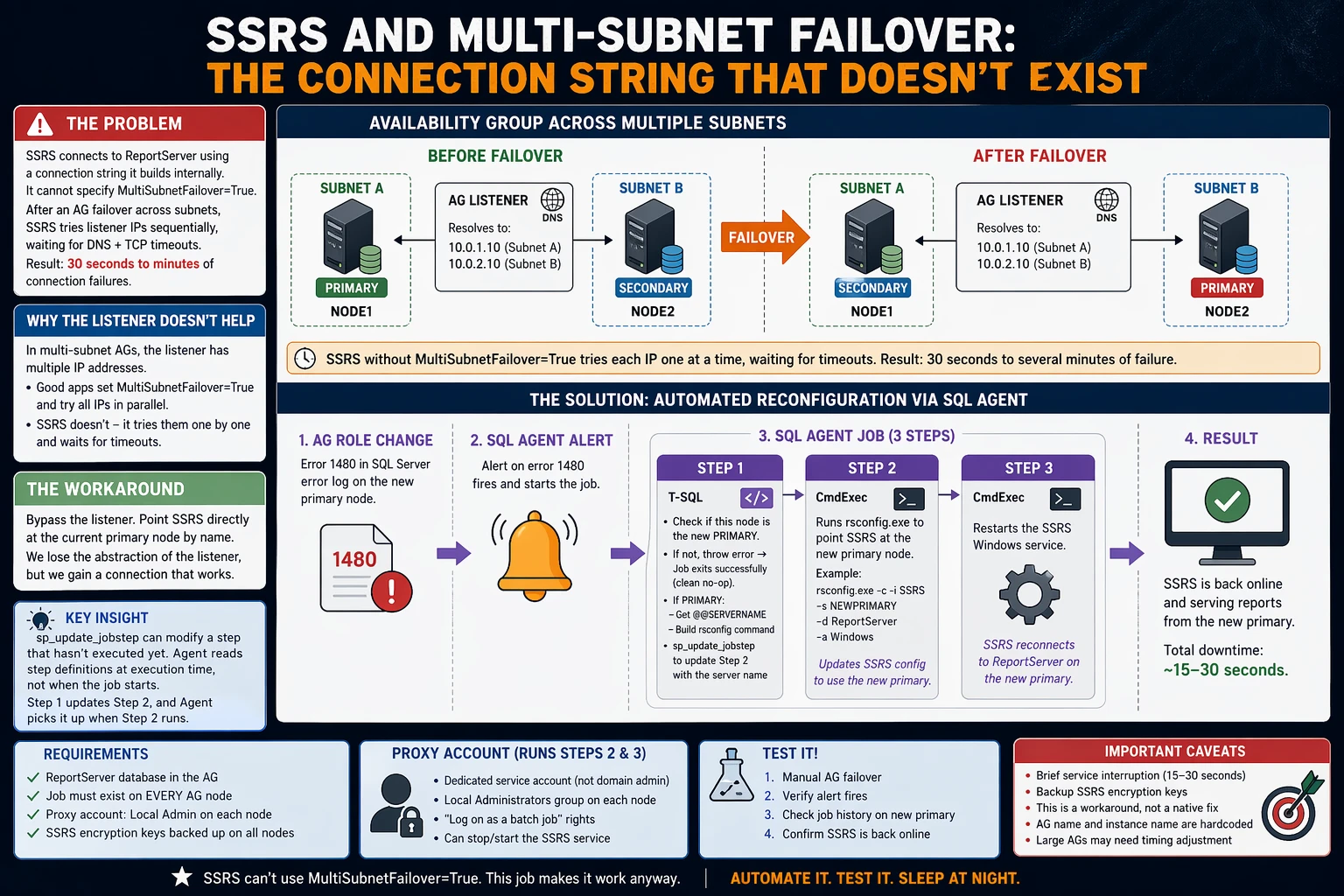
Multi-subnet AGs require MultiSubnetFailover=True in connection strings. Without it, a client connecting to the listener after failover has to wait through DNS round-robin attempts to the old primary’s IP address - an IP that no longer responds. Depending on the DNS TTL and the client’s TCP timeout, this can mean 30 seconds to several minutes of connection failures. With MultiSubnetFailover=True, the client tries all listener IPs in parallel and connects to whichever one answers.
Every application I manage got MultiSubnetFailover=True in its connection string. Every application except SSRS.
SSRS has no mechanism to specify MultiSubnetFailover=True in its ReportServer database connection. Not in RSReportServer.config, not in the Reporting Services Configuration Manager, not in rsconfig.exe. The connection string is constructed internally and doesn’t expose additional connection properties.[1]
This means that after an AG failover across subnets, SSRS sits there trying to connect to an IP address that isn’t listening anymore. Restarting the SSRS service doesn’t help - it reads the same config and tries the same listener, hitting the same DNS timeout problem. The only thing that does work is reconfiguring SSRS to point directly at the new primary node using rsconfig.exe.
So the question becomes: can we automate that reconfiguration?
Why We Can’t Just Use the Listener
In a single-subnet AG, the listener has one IP address. After failover, that IP floats to the new primary, and everything reconnects quickly. In a multi-subnet AG, the listener has multiple IP addresses - one per subnet. After failover, DNS returns all of them, and the client has to figure out which one is live.
Well-behaved applications set MultiSubnetFailover=True and try all IPs simultaneously. SSRS doesn’t - it tries them sequentially, waits for each TCP timeout, and eventually (maybe) connects. Or it doesn’t, and you get a sea of “cannot connect to ReportServer database” errors in the SSRS log.
The workaround is to bypass the listener entirely for SSRS and point it at the current primary node by name. We lose the abstraction of the listener, but we gain a connection that actually works.
The Solution: Dynamic rsconfig via SQL Agent
Here’s the approach:
- A SQL Agent Alert fires when the AG role changes on this node
- The alert triggers an Agent Job
- Step 1 (T-SQL): Queries the AG DMVs to find the current primary replica name, then uses
sp_update_jobstepto dynamically write that server name into Step 2’s command text - Step 2 (CmdExec): Runs
rsconfig.exeto point SSRS at the new primary - Step 3 (CmdExec): Restarts the SSRS Windows service
The key insight - and the question I had to answer before building this - is whether sp_update_jobstep can modify a step that hasn’t executed yet within the current job run. I verified that yes, it works. Agent reads step definitions from msdb when it moves to the next step, not when the job starts. When Step 1 calls sp_update_jobstep to change Step 2’s command, Agent picks up the updated command when it reaches Step 2. Microsoft doesn’t explicitly document this as guaranteed behavior, but it’s been reliable in every version I’ve tested from 2016 through 2022.
rsconfig.exe Basics
rsconfig.exe reconfigures which SQL Server instance hosts the ReportServer database. The syntax:
|
1 |
rsconfig.exe -c -i <instance_name> -s <sql_server_name> -d <database_name> -a Windows |
-c- configure (as opposed to-efor encrypt)-i- the SSRS instance name, only needed for named instances. For SQL Server 2017+ standalone installs this is typicallySSRS. For older installs or default instances, you may not need-iat all. Check your Reporting Services Configuration Manager if you’re unsure-s- the SQL Server hosting the ReportServer database (this is what we’re changing dynamically)-d- the database name (usuallyReportServer)-a Windows- use Windows authentication
The executable lives at a path like C:\Program Files\Microsoft SQL Server Reporting Services\Shared Tools\rsconfig.exe on newer installs, or C:\Program Files\Microsoft SQL Server\MSRS on older versions. Find yours and adjust the job step accordingly.
rsconfig.exe requires the caller to be a member of the local Administrators group.[2]
The Code
The Alert
Create an alert on error 1480 - this fires when an AG replica role changes. You could also use a WMI alert on the AG state change event, but error 1480 is simpler and reliable. Note that 1480 is a per-database message, so a single AG failover may fire it multiple times (once per database in the AG). The @delay_between_responses = 60 setting prevents the job from being triggered repeatedly.
|
1 2 3 4 5 6 7 8 9 10 11 12 |
USE [msdb]; GO EXEC msdb.dbo.sp_add_alert @name = N'AG Role Change - Reconfigure SSRS', @message_id = 1480, @severity = 0, @enabled = 1, @delay_between_responses = 60, @include_event_description_in = 0, @job_name = N'SSRS - Reconfigure ReportServer Connection'; GO |
The Job
The job has three steps. Adjust the paths, instance names, and service names for your environment.
|
1 2 3 4 5 6 7 8 9 10 11 12 13 14 15 16 17 18 19 20 21 22 23 24 25 26 27 28 29 30 31 32 33 34 35 36 37 38 39 40 41 42 43 44 45 46 47 48 49 50 51 52 53 54 55 56 57 58 59 60 61 62 63 64 65 66 67 68 69 70 71 72 73 74 75 76 77 78 79 80 81 82 83 84 85 86 87 88 89 90 91 92 93 94 95 96 97 98 99 100 101 102 103 |
USE [msdb]; GO /* ----------------------------------------------------------- Job: SSRS - Reconfigure ReportServer Connection Fires on AG role change. Detects the new primary replica and reconfigures the local SSRS instance to connect to it. ----------------------------------------------------------- */ DECLARE @jobId uniqueidentifier; EXEC msdb.dbo.sp_add_job @job_name = N'SSRS - Reconfigure ReportServer Connection', @enabled = 1, @description = N'Reconfigures SSRS ReportServer database connection after AG failover. Triggered by AG role change alert (error 1480).', @category_name = N'[Uncategorized (Local)]', @owner_login_name = N'sa', @job_id = @jobId OUTPUT; /* ----------------------------------------------------------- Step 1: Determine new primary and update Step 2 ----------------------------------------------------------- */ EXEC msdb.dbo.sp_add_jobstep @job_id = @jobId, @step_name = N'Determine Primary and Update rsconfig Step', @step_id = 1, @subsystem = N'TSQL', @command = N' DECLARE @local_role nvarchar(60); DECLARE @rsconfig_cmd nvarchar(4000); DECLARE @ag_name sysname = N''YourAGName''; /* <-- change this */ SELECT @local_role = ars.role_desc FROM sys.dm_hadr_availability_replica_states AS ars INNER JOIN sys.availability_replicas AS ar ON ars.replica_id = ar.replica_id INNER JOIN sys.availability_groups AS ag ON ar.group_id = ag.group_id WHERE ag.name = @ag_name AND ars.is_local = 1; /* Only proceed if this node is the new primary. THROW causes Step 1 to fail, and @on_fail_action = 1 tells Agent to quit the job with success - a clean no-op. */ IF @local_role IS NULL OR @local_role <> N''PRIMARY'' BEGIN ;THROW 50000, N''This node is not the primary replica. Skipping SSRS reconfiguration.'', 1; END; /* Build the rsconfig command pointing at this node */ SET @rsconfig_cmd = N''"C:\Program Files\Microsoft SQL Server Reporting Services\Shared Tools\rsconfig.exe"'' + N'' -c -i SSRS -s '' + @@SERVERNAME + N'' -d ReportServer -a Windows''; /* Update Step 2 with the correct server name. Agent reads step definitions from msdb at execution time, so this updated command will be used when Step 2 runs. */ EXEC msdb.dbo.sp_update_jobstep @job_name = N''SSRS - Reconfigure ReportServer Connection'', @step_id = 2, @command = @rsconfig_cmd; ', @on_success_action = 3, /* Go to next step */ @on_fail_action = 1, /* Quit with success (not primary = clean no-op) */ @database_name = N'master'; /* ----------------------------------------------------------- Step 2: Run rsconfig.exe (placeholder - updated by Step 1) ----------------------------------------------------------- */ EXEC msdb.dbo.sp_add_jobstep @job_id = @jobId, @step_name = N'Run rsconfig.exe', @step_id = 2, @subsystem = N'CmdExec', @command = N'echo Step not yet configured by Step 1 && exit /b 1', @on_success_action = 3, /* Go to next step */ @on_fail_action = 2, /* Quit with failure */ @proxy_name = N'SSRS_Admin_Proxy'; /* ----------------------------------------------------------- Step 3: Restart the SSRS service ----------------------------------------------------------- */ EXEC msdb.dbo.sp_add_jobstep @job_id = @jobId, @step_name = N'Restart SSRS Service', @step_id = 3, @subsystem = N'CmdExec', @command = N'net stop "SQL Server Reporting Services (SSRS)" && timeout /t 5 /nobreak >nul && net start "SQL Server Reporting Services (SSRS)"', @on_success_action = 1, /* Quit with success */ @on_fail_action = 2, /* Quit with failure */ @proxy_name = N'SSRS_Admin_Proxy'; /* Start at Step 1 */ EXEC msdb.dbo.sp_update_job @job_id = @jobId, @start_step_id = 1; /* Add to local server */ EXEC msdb.dbo.sp_add_jobserver @job_id = @jobId, @server_name = N'(local)'; GO |
Note the early exit in Step 1: if this node isn’t the new primary, Step 1 throws an error. But @on_fail_action = 1 tells Agent to quit the job with success - so secondary nodes get a clean, successful job execution in the history rather than a sea of red failures. Only the new primary proceeds to Steps 2 and 3.
Important: This job must exist on every AG node, because any node could become the primary.
The Proxy Account
Steps 2 and 3 run under a CmdExec proxy because they need privileges the SQL Agent service account shouldn’t have:
- Local Administrator membership (required by
rsconfig.exe) - Permission to stop/start the SSRS Windows service
Create a dedicated service account for this. Do not use a domain admin account. Do not reuse the SQL Agent service account. The principle here is simple: this account should be able to run rsconfig.exe and restart SSRS, and nothing else.
|
1 2 3 4 5 6 7 8 9 10 11 12 13 14 15 16 17 18 19 20 21 22 23 24 |
USE [master]; GO /* Create a credential mapped to the service account */ CREATE CREDENTIAL [SSRS_Admin_Credential] WITH IDENTITY = N'YOURDOMAIN\svc-ssrs-admin', SECRET = N'<password>'; GO USE [msdb]; GO /* Create a proxy that uses the credential */ EXEC msdb.dbo.sp_add_proxy @proxy_name = N'SSRS_Admin_Proxy', @credential_name = N'SSRS_Admin_Credential', @enabled = 1, @description = N'Proxy for SSRS reconfiguration. Runs rsconfig.exe and restarts the SSRS service.'; /* Grant the proxy access to the CmdExec subsystem */ EXEC msdb.dbo.sp_grant_proxy_to_subsystem @proxy_name = N'SSRS_Admin_Proxy', @subsystem_id = 3; /* 3 = CmdExec */ GO |
On each AG node, make sure the YOURDOMAIN\svc-ssrs-admin account:
- Is a member of the local Administrators group
- Has “Log on as a batch job” rights (usually granted automatically when added as a proxy credential)
- Can stop/start the SSRS service (local Admin covers this, but verify)
Testing It
Don’t wait for a production failover to find out this doesn’t work. Test it deliberately.
Pre-test checklist
- SSRS is running and serving reports on the current primary
- The Agent job exists on all AG nodes
- The proxy credential is configured on all nodes
- The
rsconfig.exepath in the job step is correct for your installation
Manual failover test
|
1 2 3 |
/* On the current primary, initiate a manual failover to the target replica */ ALTER AVAILABILITY GROUP [YourAGName] FAILOVER; |
Then watch:
- Error 1480 should appear in the SQL Server error log on the new primary
- The Agent alert should fire (check
msdb.dbo.sysalerts_performance_countersor justsp_help_alert) - The Agent job should run - check job history on the new primary
- Step 1 should show the primary detection and
sp_update_jobstepcall - Step 2 should show
rsconfig.execompleting successfully - Step 3 should show the SSRS service restarting
- After 30-60 seconds, SSRS should serve reports from the new primary
If any step fails, the job history will tell you exactly which one and why. Common issues:
- Wrong
rsconfig.exepath → Step 2 fails with “file not found” - Proxy account not in local Administrators → Step 2 fails with an access denied error from
rsconfig.exe - Wrong SSRS service name → Step 3 fails to stop the service
- SSRS instance name wrong (e.g.,
MSSQLSERVERvs.SSRS) →rsconfig.execompletes but configures the wrong instance (or throws an error)
Fail back
After validating on the new primary, fail back to the original node and verify the same process works in reverse. Both directions need to work.
Caveats and Edge Cases
Brief service interruption. There’s a window between the AG failover completing and SSRS finishing its reconfiguration where reports won’t work. In my environment this is 15-30 seconds - the time for the alert to fire, Agent to start the job, rsconfig.exe to run, and the SSRS service to restart. Users hitting the report server during this window will get errors. If your SSRS handles time-sensitive requests, plan accordingly.
Encryption key backup. SSRS encrypts stored credentials and connection strings using an encryption key. Before any of this, make sure you’ve backed up the SSRS encryption key on every node. If rsconfig.exe reconfigures the database connection and the encryption keys don’t match, you’ll get decryption errors for every stored data source credential. The Reporting Services Configuration Manager has a “Backup” button on the Encryption Keys page. Use it. Store the backup somewhere that isn’t the server itself.
This is a workaround. I want to be explicit about this: we’re working around the fact that Microsoft hasn’t added MultiSubnetFailover support to SSRS’s internal database connection. If they ever do (and as of SQL Server 2022, they haven’t), this entire approach becomes unnecessary. Until then, this is what we’ve got.
AG name and instance name are hardcoded. The T-SQL in Step 1 has your AG name baked in. If you rename the AG or add a second one, update the job. Same for the SSRS instance name in the rsconfig.exe command.
Cross-database queries. I mentioned our line-of-business app runs cross-database queries between user databases and ReportServer. This is why ReportServer has to be in the AG in the first place - those queries need all databases on the same instance. If you don’t have this constraint, there are simpler architectures (like a standalone SSRS with its own local ReportServer database). But if you’re reading this post, you probably have the same constraint.
Timing with multiple AG databases. If your AG contains many databases, the role change event fires as soon as the AG starts transitioning. The databases may not all be online on the new primary yet. In practice, rsconfig.exe only needs the ReportServer database to be accessible, and it’s usually online by the time Step 2 runs (Step 1 provides a few seconds of delay). If you have a very large AG and see timing issues, add a WAITFOR DELAY '00:00:10' at the beginning of Step 1.
This is a workaround for a gap in SSRS that’s been open since multi-subnet AGs shipped in SQL Server 2012. Fourteen years. If you’re reading this from the future and SSRS finally supports MultiSubnetFailover=True natively - congratulations, you can delete this job. For the rest of us, this gets the job done.
RSReportServer.config directly and add connection string properties. This doesn’t work for the ReportServer database connection. The <Dsn> element in that file contains an encrypted connection string that rsconfig.exe manages. Hand-editing it is unsupported and, in my testing, ignored.
rsconfig.exe - a utility that writes a connection string to a config file - requires local Administrator rights. Not “write access to the config file.” Not “membership in the RSExecRole.” Full local Administrator. Surely a utility whose sole purpose is updating a configuration value doesn’t need the ability to completely destroy the entire machine, but that’s a needless digression.