
Merging Is Like Synchronizing Two Databases
You’ve created a branch. You’ve made changes. Now you need to bring those changes back into main. In the DBA world, this is a problem you’ve already solved a hundred times - you just called it something different.
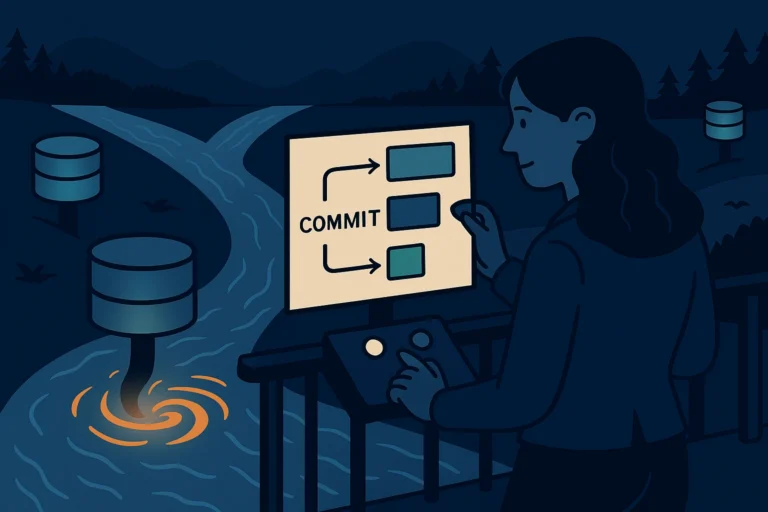
A Merge Is a Schema Compare + Apply
If you’ve ever used SQL Server Data Tools, Redgate SQL Compare, or even a hand-written migration script, you’ve done a merge. The concept is identical:
- You have a source (your branch with changes)
- You have a target (
main, the branch you want to update) - You generate a diff of what changed
- You apply that diff to the target
In git, you use git merge:
|
1 2 3 4 5 |
# Switch to the branch you want to update git switch main # Merge the source branch into it git merge experiment |
That’s it. Git examines what changed on experiment, applies those changes to main, and creates a merge commit - a record that says “I reconciled these two histories at this point.” Think of it as a deployment log entry.
Fast-Forward: When Only One Side Changed
Sometimes the merge is trivial. If main hasn’t changed since you created your branch, git doesn’t even need to reconcile anything. It just moves main forward to match your branch. Git calls this a fast-forward merge.
It’s like running a schema compare where the target hasn’t been modified - the diff is one-directional, and applying it is a no-brainer.
|
1 2 3 4 5 |
$ git merge experiment Updating a1b2c3d..f4e5d6c Fast-forward sp_GetOrders.sql | 15 +++++++++------ 1 file changed, 9 insertions(+), 6 deletions(-) |
No merge commit needed. Clean, simple, linear history.
Merge Conflicts: Both Sides Changed the Same Thing
Now for the fun part. What happens when both branches modified the same line of the same file?
Git can’t auto-decide which version wins. This is the exact same problem as running a schema compare and seeing “both sides modified this stored procedure.” The tool flags it. You decide.
|
1 2 3 4 |
$ git merge experiment Auto-merging sp_GetOrders.sql CONFLICT (content): Merge conflict in sp_GetOrders.sql Automatic merge failed; fix conflicts and then commit the result. |
Open the file, and you’ll see git’s conflict markers:
|
1 2 3 4 5 |
<<<<<<< HEAD WHERE OrderDate >= DATEADD(DAY, -30, GETDATE()) ======= WHERE OrderDate >= DATEADD(DAY, -7, GETDATE()) >>>>>>> experiment |
The section between <<<<<<< HEAD and ======= is what main has. The section between ======= and >>>>>>> experiment is what experiment has. You pick one, or write a third option that combines both. Then delete the conflict markers.
|
1 2 3 |
# After editing the file to resolve the conflict: git add sp_GetOrders.sql git commit -m "Merge experiment: use 7-day window instead of 30" |
When a Merge Goes Wrong: ROLLBACK
Sometimes you start a merge and realize it’s more complicated than you expected. Conflicts everywhere. You’re not sure which version is right. You want to back out.
|
1 |
git merge --abort |
That’s ROLLBACK TRANSACTION. Your working directory goes back to the state it was in before you started the merge. No harm done.
Three Tips From a DBA Who’s Been There
1. Merge often. The longer two branches diverge, the worse the conflicts get. It’s the same principle as applying cumulative updates - small, frequent merges are easier than one massive reconciliation.
2. Always merge on a clean working directory. Run git status before merging. If you have uncommitted changes, commit or stash them first. Merging with a dirty working directory is like running a migration script while someone else is modifying the schema.
3. When in doubt, read the diff. Before merging, check what’s coming:
|
1 |
git diff main..experiment |
This is your schema compare preview. Review it before you apply.
Try This Yourself
|
1 2 3 4 5 6 7 8 9 10 11 12 |
# Create a branch and change a file git switch -c experiment echo "SELECT * FROM Orders WHERE Status = 'Pending';" > query.sql git add query.sql && git commit -m "Filter pending orders" # Go back to main and change the same file differently git switch main echo "SELECT * FROM Orders WHERE Status = 'Complete';" > query.sql git add query.sql && git commit -m "Filter complete orders" # Now merge - you'll hit your first conflict git merge experiment |
Open query.sql, pick the version you want, remove the conflict markers, then git add and git commit. Congratulations - you just did a schema compare merge by hand.
The One Sentence to Remember
A merge applies a diff from one branch to another - and when both sides changed the same thing, you resolve it the same way you’d resolve a schema compare conflict.
Previously: Branches Are Just Database Copies You Can Merge Back
Next up: Pull, Push, Fetch - It’s Just Backup and Restore Over a Network