
Pull, Push, Fetch - It’s Just Backup and Restore Over a Network
So far, everything we’ve done has been local. Your repository lives on your machine, your branches are on your machine, your commits are on your machine. That’s fine for solo work, but the real power of git kicks in when you connect to a remote server.
If you’ve ever backed up a database to a network share or restored from one - congratulations, you already understand remote operations in git.
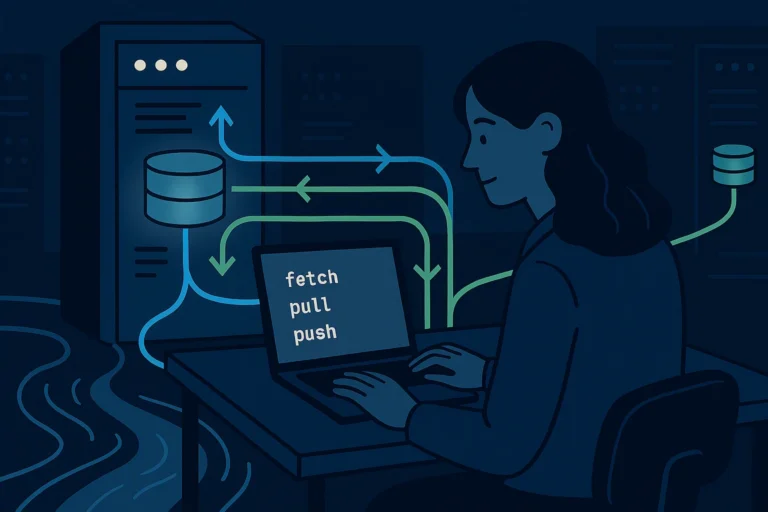
Origin Is Your Production Server
In most git setups, there’s a central repository that everyone pushes to and pulls from. By convention, it’s called origin. Think of it as your production server (more on remotes) - the source of truth that all the dev copies came from.
|
1 2 |
# See your configured remotes git remote -v |
|
1 2 |
origin https://github.com/yourteam/database-scripts.git (fetch) origin https://github.com/yourteam/database-scripts.git (push) |
That URL is where your central repository lives - GitHub, Azure DevOps, Bitbucket, or a self-hosted server. It’s the network share where the “production backup” lives.
Fetch: Check What Changed Without Applying
|
1 |
git fetch origin |
This downloads the latest metadata from the remote server without changing your local files. It’s a read-only check: “what’s changed on the server since I last looked?”
Think of it as running a query against the production server to see what’s been modified - but not applying anything to your dev database yet. You’re just gathering information.
After fetching, you can compare:
|
1 2 |
# What commits exist on origin/main that I don't have? git log main..origin/main --oneline |
Pull: Fetch + Merge in One Step
|
1 |
git pull origin main |
This is fetch followed by merge - download the remote changes AND apply them to your local branch. It’s the git equivalent of restoring a differential backup on top of your dev database.
Most of the time, git pull is what you want. It brings your local copy up to date with whatever the team has pushed.
If there are conflicts - someone else changed the same file you changed - you resolve them exactly like we covered in the merging post. Same conflict markers, same process.
Push: Deploy Your Changes to the Server
|
1 |
git push origin main |
This uploads your local commits to the remote server. It’s deploying your migration script to production - your changes are now visible to everyone who pulls from origin.
A few things to know about push:
You can only push if you’re up to date. If someone else pushed changes since your last pull, git rejects your push with a message like “Updates were rejected because the remote contains work that you do not have locally.” The fix: pull first, resolve any conflicts, then push again. This is git protecting you from overwriting someone else’s work - the same reason you’d check if anyone else is running scripts against production before you deploy.
You push branches, not files. When you push, you’re pushing your branch’s entire commit history to the remote. Every commit you’ve made locally that the remote doesn’t have gets uploaded.
The Pull-Work-Push Cycle
Here’s the daily workflow for a DBA using git with a team:
|
1 2 3 4 5 6 7 8 9 10 11 12 13 14 |
# 1. Start your day - get the latest from the remote git pull origin main # 2. Create a branch for your work git switch -c fix/update-backup-script # 3. Make your changes, commit them git add backup-maintenance.sql git commit -m "Fix log backup retention to 48 hours" # 4. Push your branch to the remote git push origin fix/update-backup-script # 5. Open a pull request (we'll cover this more in Post 9) |
This is the same pattern as: sync your dev environment, make changes in an isolated copy, deploy when ready.
Pull --rebase: The Cleaner Alternative
There’s a variation of pull that many teams prefer:
|
1 |
git pull --rebase origin main |
Instead of creating a merge commit, this stashes your local changes, pulls the remote changes, then replays your commits on top. The result is a cleaner, linear history - no merge bubbles.
Think of it like this: instead of merging two branches, you pretend you started your work after the latest remote changes. Your commits are rewritten to sit on top of the new baseline.
We’ll go deeper on rebase in Post 6. For now, just know that git pull --rebase is the “clean history” version of git pull.
Clone: The Initial Restore
One more command that fits this analogy perfectly: git clone.
|
1 |
git clone https://github.com/yourteam/database-scripts.git |
This downloads the entire remote repository to your machine - every branch, every commit, all of history. It’s RESTORE DATABASE from the network share. You do this once, and then use pull/push to stay in sync.
Try This Yourself
Create a repository on GitHub (or Azure DevOps). Clone it locally. Make a change, commit it, push it. Then go to the GitHub web UI, edit a file there, and commit. Back on your machine, git pull - you just completed a remote sync cycle.
The One Sentence to Remember
Fetch checks what changed on the server, pull downloads and applies those changes, and push deploys your local commits back to the central repository.
Previously: Merging Is Like Synchronizing Two Databases
Next up: Stash Is Just a Temp Table for Your Changes