
Your AI Agent Is Quietly Corrupting Your SQL Files
You ask your AI coding agent to generate a T-SQL script. It writes the file. You open it in SSMS. And before you see a single line of SQL, you get this:
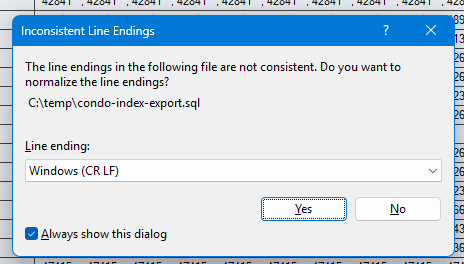
If you’ve been using GitHub Copilot’s coding agent, Claude, ChatGPT, or any other AI assistant that writes files through PowerShell, you’ve probably seen this. Maybe you clicked “Yes” without thinking. Maybe you clicked “No” and noticed weird formatting later. Either way, something went wrong before your query ever ran.
The Root Cause: PowerShell Here-Strings
Most AI coding agents running on Windows use PowerShell to write files. The natural way to write a multi-line file in PowerShell is a here-string:
|
1 2 3 4 5 6 7 8 9 10 11 12 13 14 |
$content = @" USE [MyDatabase]; SELECT [Name] = [p].[LastName] , [Department] = [d].[DeptName] FROM [dbo].[Person] AS [p] INNER JOIN [dbo].[Department] AS [d] ON [d].[DeptID] = [p].[DeptID]; "@ Set-Content -Path "C:\temp\my-query.sql" -Value $content |
Looks perfectly reasonable. The SQL is correct. The file gets created. But open it in a hex editor and you’ll see the problem: every line ends with 0x0A (LF) instead of 0x0D 0x0A (CRLF).
PowerShell here-strings - both the single-quoted (@' ... '@) and double-quoted (@" ... "@) variants - produce Unix-style LF line endings internally, regardless of the platform. When Set-Content writes that string to disk, the LF endings pass through unchanged.
Windows expects CRLF. SSMS expects CRLF. Visual Studio expects CRLF. Your .gitattributes probably expects CRLF. And now your file has LF.
Why This Actually Matters
“It’s just line endings” is the usual dismissal. Here’s why it matters more than you think:
1. SSMS normalization changes your file.
When you click “Yes” on that dialog, SSMS rewrites the entire file with CRLF endings. If you had the file open in another editor simultaneously, you now have a conflict. If the file was under source control, git diff shows every single line as changed - even though not one character of actual content is different.
2. Source control noise.
A PR that should show a 3-line change now shows 150 lines changed because the line endings flipped. Code reviewers see a wall of red and green and either skip the review entirely or waste time confirming nothing actually changed. Neither outcome is good.
3. Mixed endings in the same file.
If the AI agent edits an existing CRLF file by appending or replacing content using a here-string, you end up with a file that’s partially CRLF and partially LF. Some editors handle this gracefully. Others - including some versions of SSMS - don’t. You can end up with phantom blank lines, indentation that looks wrong, or copy-paste behavior that breaks formatting.
4. Encoding surprises.
Set-Content in Windows PowerShell 5.1 defaults to the system’s ANSI code page. Set-Content in PowerShell 7+ defaults to UTF-8 without BOM. If your AI agent doesn’t specify encoding explicitly, you might also get encoding mismatches alongside the line ending problems - a two-for-one special in file corruption.
The Fix
If you’re writing tooling, scripts, or instructions for an AI agent that generates files on Windows, normalize line endings explicitly after constructing the content:
|
1 2 3 4 5 6 7 8 9 10 11 |
$content = @" USE [MyDatabase]; SELECT [Name] = [p].[LastName] FROM [dbo].[Person] AS [p]; "@ $content = $content -replace "`r`n", "`n" -replace "`n", "`r`n" [System.IO.File]::WriteAllText("C:\temp\my-query.sql", $content) |
The two-step replace is important. If you only do -replace " on content that already has some CRLF endings (from string concatenation, for example), you’ll double up the carriage returns and get n", "r`n"\r\r\n. Collapsing to LF first, then expanding to CRLF, handles every case cleanly.
Using [System.IO.File]::WriteAllText() instead of Set-Content also gives you explicit control over encoding. Pass [System.Text.Encoding]::UTF8 as a second argument if you want UTF-8 with BOM, or leave it as-is for UTF-8 without BOM (the .NET default).
Editing Existing Files
Writing new files is the easy case. The harder one is when an AI agent edits an existing file - say, adding a column to a stored procedure or updating a WHERE clause in a migration script.
Before editing, check what the file already uses:
|
1 2 3 4 |
$raw = [System.IO.File]::ReadAllText("C:\path\to\existing-proc.sql") $lf = ([regex]::Matches($raw, "(?<!\r)\n")).Count $crlf = ([regex]::Matches($raw, "\r\n")).Count Write-Host "LF: $lf, CRLF: $crlf" |
If the file is all CRLF (the common case on Windows), make sure your edit preserves that. If it’s mixed - and yes, some files genuinely have mixed endings because Windows tooling is inconsistent - match the dominant style for a targeted edit, or normalize the whole file if you’re doing a full rewrite.
The point is: don’t assume. Check first, then match.
What About the AI Agents Themselves?
If you’re using GitHub Copilot’s coding agent, Claude with computer use, or any other AI assistant that can write files: add explicit instructions about line endings to your agent configuration.
GitHub Copilot’s CLI agent reads a copilot-instructions.md file for persistent rules. I added this to mine:
When writing files from PowerShell, always produce Windows-style CRLF line endings. PowerShell here-strings use LF-only line endings. Normalize after writing. Before editing an existing file, check the file’s current line ending style and match it.
One paragraph. Solved the problem permanently - at least until I forget and wonder why I added it.
A Broader Point
AI coding agents are genuinely useful. I use them daily for generating T-SQL, scaffolding C# code, writing diagnostic queries, and automating repetitive tasks. But they operate one layer removed from the file system, and they don’t always understand the platform conventions of the environment they’re running in.
Line endings are a small example of a bigger pattern: AI agents optimize for content correctness and often miss environmental correctness. The SQL is right. The file metadata is wrong. And the downstream consequences - noisy diffs, broken formatting, confused editors - are the kind of paper cuts that erode trust in the tooling.
The fix isn’t to stop using AI agents. The fix is to add guardrails - explicit instructions, post-write normalization, and a healthy skepticism about anything an agent writes to disk without you reviewing the raw bytes first.
Now if you’ll excuse me, I need to go normalize 47 SQL files that my agent wrote last week.
Have you run into this? I’d love to hear about other platform-level gotchas you’ve hit with AI coding agents. Find me on Bluesky or LinkedIn.